Build your first monthly household budget in Excel
A practical way to group household spending, enter planned and actual amounts, and review one month without tracking every transaction in your workbook.
Start with one month and one currency
Choose the month you want to understand first. Collect the household income and spending records you already have, then use one currency throughout. Changing a currency label does not convert amounts: convert any foreign-currency purchase outside the workbook before entering its total.
Keep a clean copy before entering your own figures. The Annual Family Budget is designed for desktop Microsoft Excel on Windows; Excel is sold separately. It does not connect to a bank, import transactions or move money.
Choose categories you can maintain
Group spending into categories you can recognise at the end of a month, such as housing, groceries, transport and household costs. The paid workbook has 15 category lines per month with fixed input ranges. Combine smaller categories when you need to stay within those lines; inserting extra rows is not supported.
Enter planned amounts before filling in actual spending. For a fictional example, a grocery plan of 400 and actual spending of 430 differ by 30. That difference is a prompt to check the records and the plan, rather than evidence of success or failure.
Enter category totals, not a transaction log
Add up the relevant transactions in your own records and enter one monthly total per category. Record a transaction once. If a bill was paid from a savings account, decide how your records represent the transfer and the purchase so that the same expense is not counted twice.
The twelve monthly budgets are independent. Check the category names and figures in each month you use; a change in one month should not be assumed to update another. The workbook does not provide a daily transaction ledger.
Close the month with a short review
Compare the recorded actual totals with the records used to prepare them. Check missing bills, refunds and duplicated entries before interpreting any difference. Save a dated backup after the review.
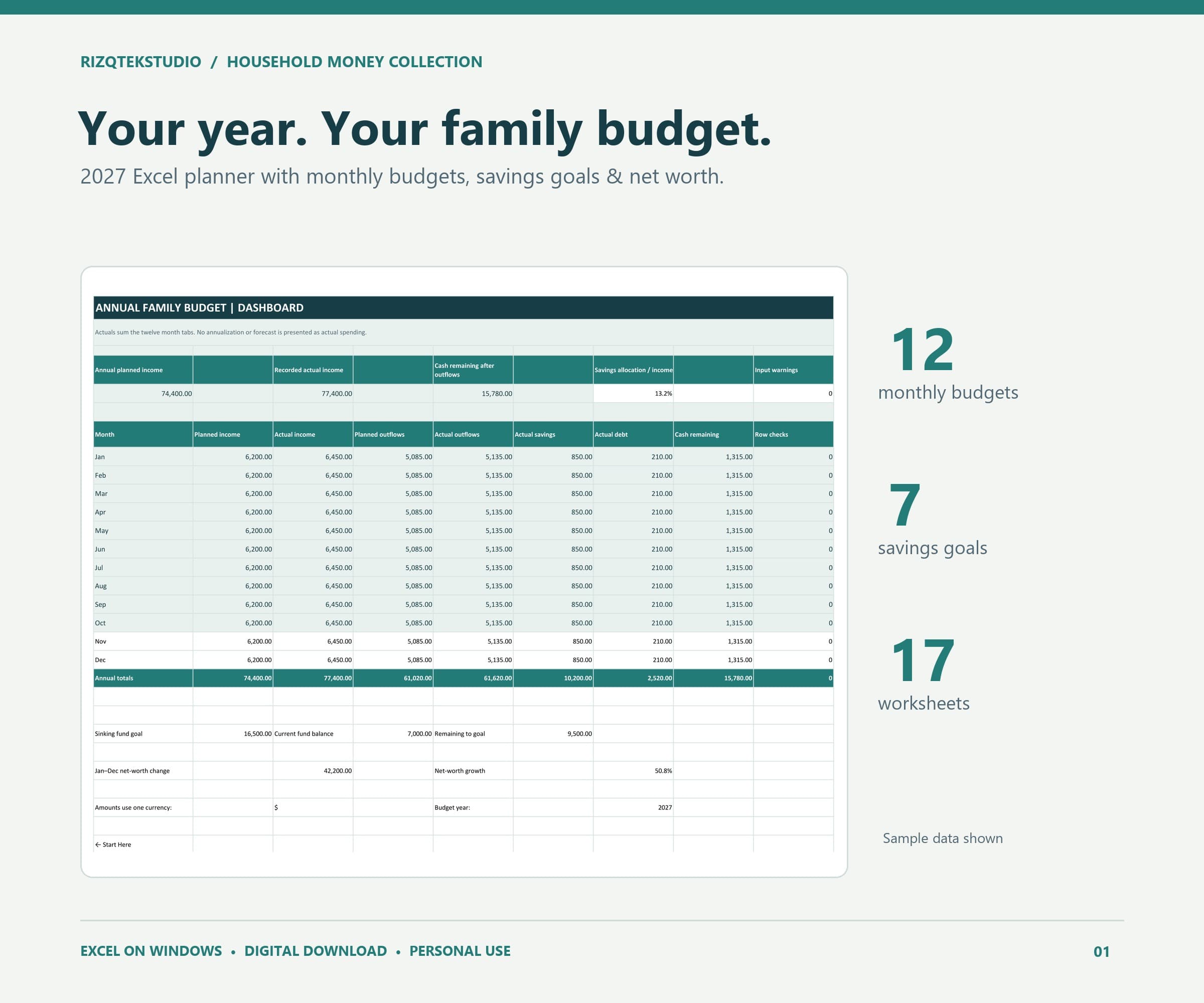
Use the annual dashboard to look at recorded yearly totals, while keeping in mind that an empty month is missing information, not proof that nothing was spent. Choose one practical change to your next month's categories or estimates, then repeat the same review process.
Educational workbook guidance. Figures in examples are fictional; verify your own records.